Fabric Prerequisites
There are three main steps to install Fusion in Fabric for a fresh installation:
- Create the required resources in Fabric
- Deploy the Fusion terraform in Azure
- Install the Elevate Connector on the VM to connect to the source system
Coming Soon: Visual guide showing the three main installation steps
Microsoft Fabric Integration (New in 3.7)
Fusion 3.7 introduces Public Preview support for Microsoft Fabric integration. This allows Fusion to work directly with Microsoft Fabric's unified analytics platform.
Coming Soon: Architecture diagram showing Fusion integration with Microsoft Fabric
Fabric Prerequisites
- Licensed Fabric Customer: Your tenant must be registered in the Fabric administration site with the "Registered" checkbox checked
- Fabric Workspace: A Microsoft Fabric workspace with appropriate permissions
- Minimum Fabric Capacity: Fabric F8 or higher is required for production deployments.
- Eventhouse and KQL Database: Access to create or use an existing Eventhouse and KQL database
Fabric Onboarding Steps
To onboard Fusion with Fabric, you must:
- Set up a Fabric workspace and ensure F8+ capacity.
- Create or connect to an Eventhouse and KQL database.
- Configure DataStream, OneLake, Data Pipelines, and Dataflow Gen2 as required for your scenario.
- Run the provided KQL scripts manually in the Fabric KQL database to initialize schemas and tables.
Fabric Configuration Steps
Step 1: Fabric Workload Setup
- In your Fabric workspace, add the Fusion workload
- Navigate to the workload settings page
- Connect the workload to an Eventhouse and KQL database
- Once connected, note the following values from the settings page:
- Database ID (copy to clipboard by hovering)
- Query URI (copy to clipboard by hovering)
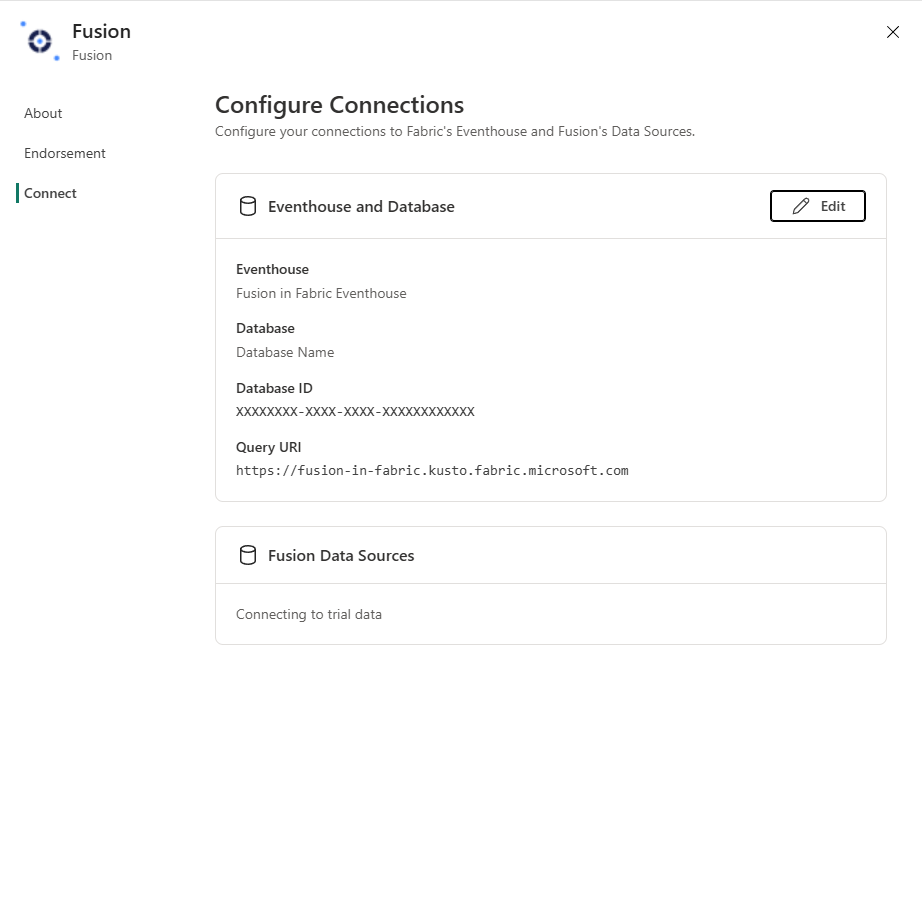 Fabric workload settings page showing Database ID and Query URI that need to be copied for Terraform configuration
Step 2: Terraform Configuration for Fabric
When deploying Fusion with Fabric integration, use these specific configuration values:
# Fabric-specific configuration
adxCount = 0
adxClusterUri = "<query_uri_from_fabric_settings>"
adxDatabase = "<database_id_from_fabric_settings>"
Step 3: Post-Deployment Fabric Connection
After Fusion deployment:
- Return to the Fabric workload settings
- Complete the "Connect to Fusion" section:
- Select your Azure subscription
- Select the resource group where Fusion was deployed
- Other dropdowns should auto-populate
- Click Save
This grants necessary permissions for:
- ADF to push DataStreamMetaData, DataModels, and StateSets
- DPP to push real-time data
- Event frame relay to push event frames
- ADX runner to update materialized views
Fabric vs Traditional ADX Deployment
| Feature | Traditional ADX | Microsoft Fabric |
|---|---|---|
| adxCount | 1 | 0 |
| adxClusterUri | Auto-generated | From Fabric settings |
| adxDatabase | Auto-generated | From Fabric settings |
| Data Platform | Azure Data Explorer | Fabric KQL Database |
| Analytics | Custom dashboards | Fabric + Power BI |
| AI Integration | Limited | Fabric Copilot + Agents |